
Apply a filter
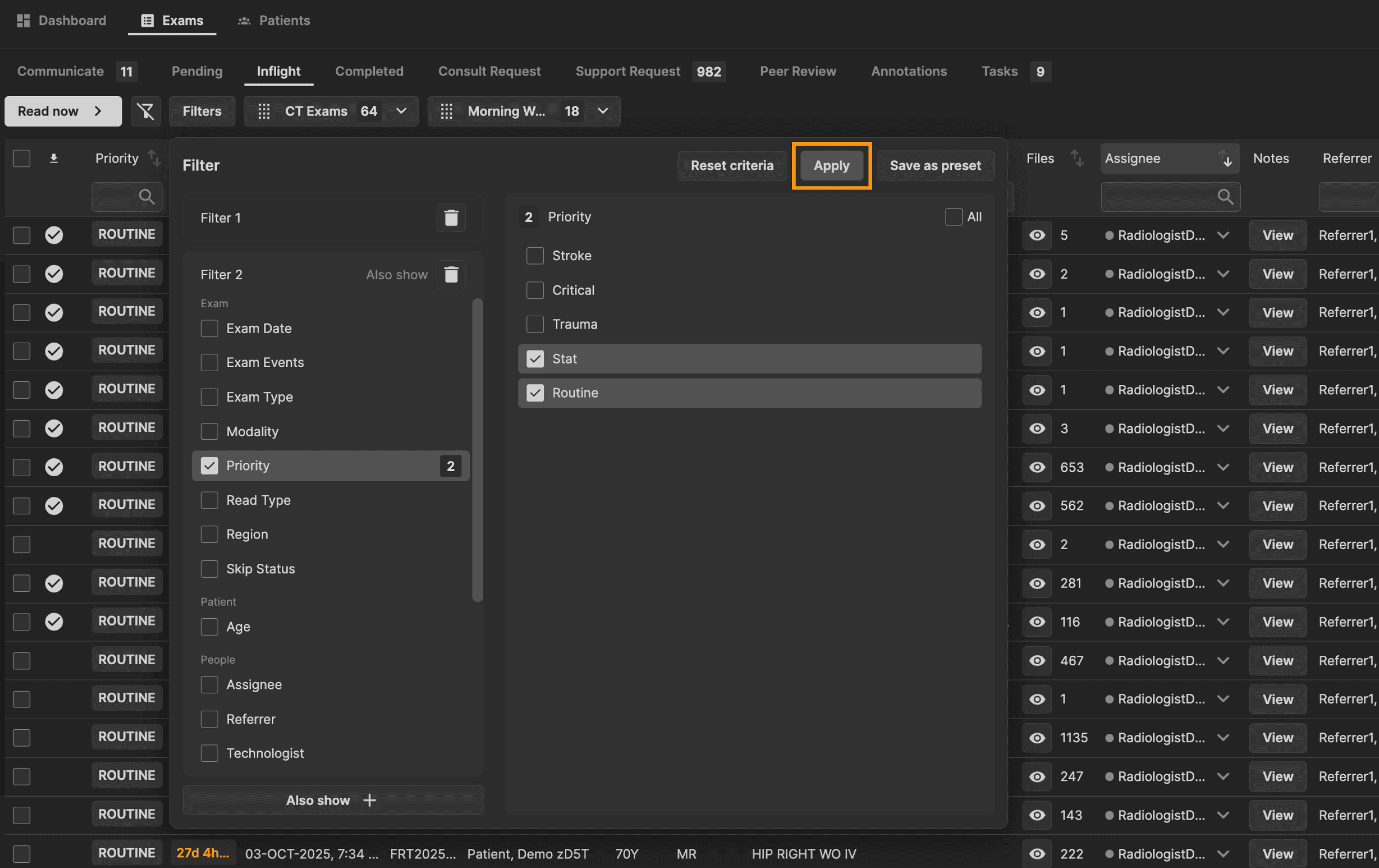
Click on the "Filters" button. | |
|---|---|
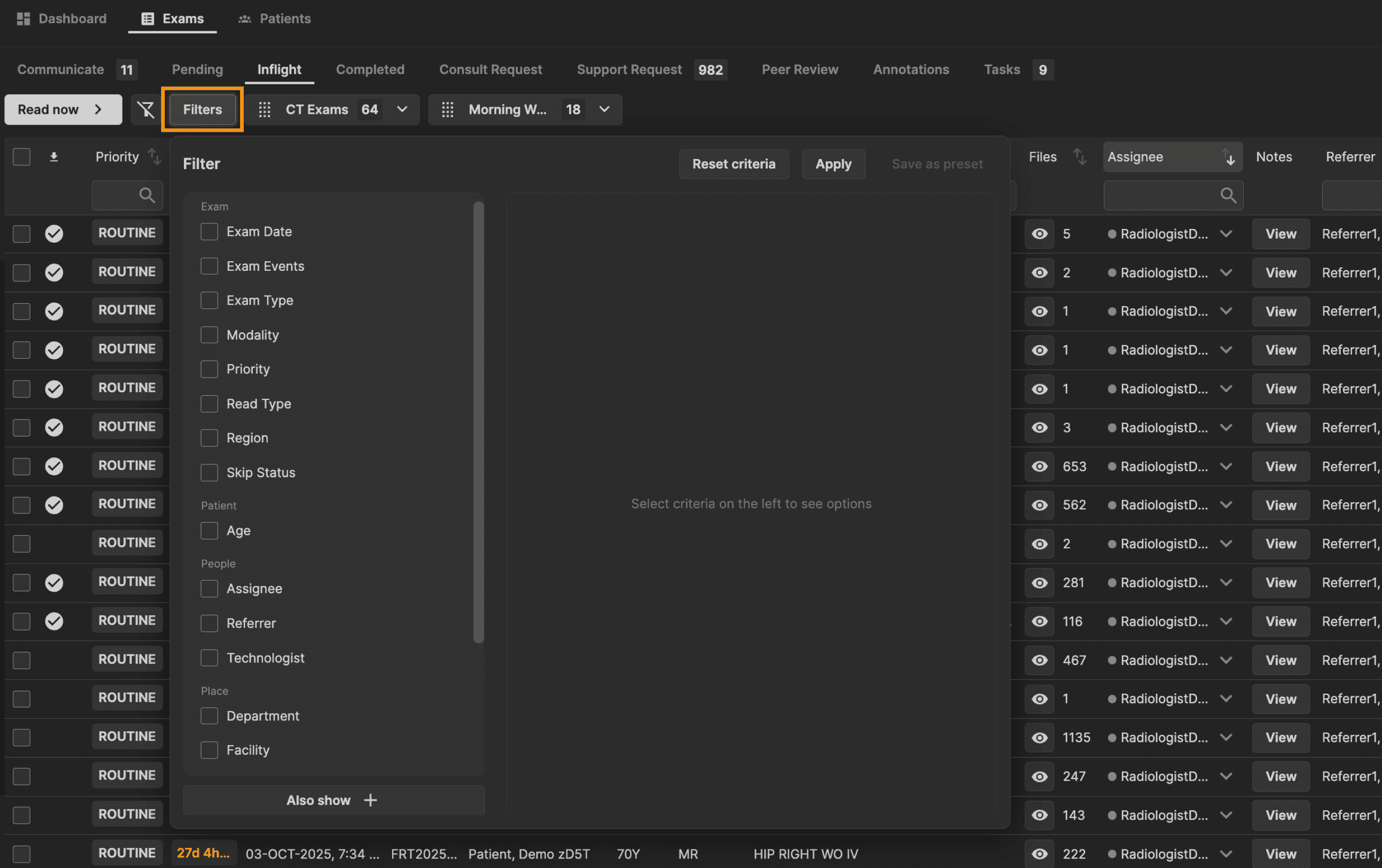 |
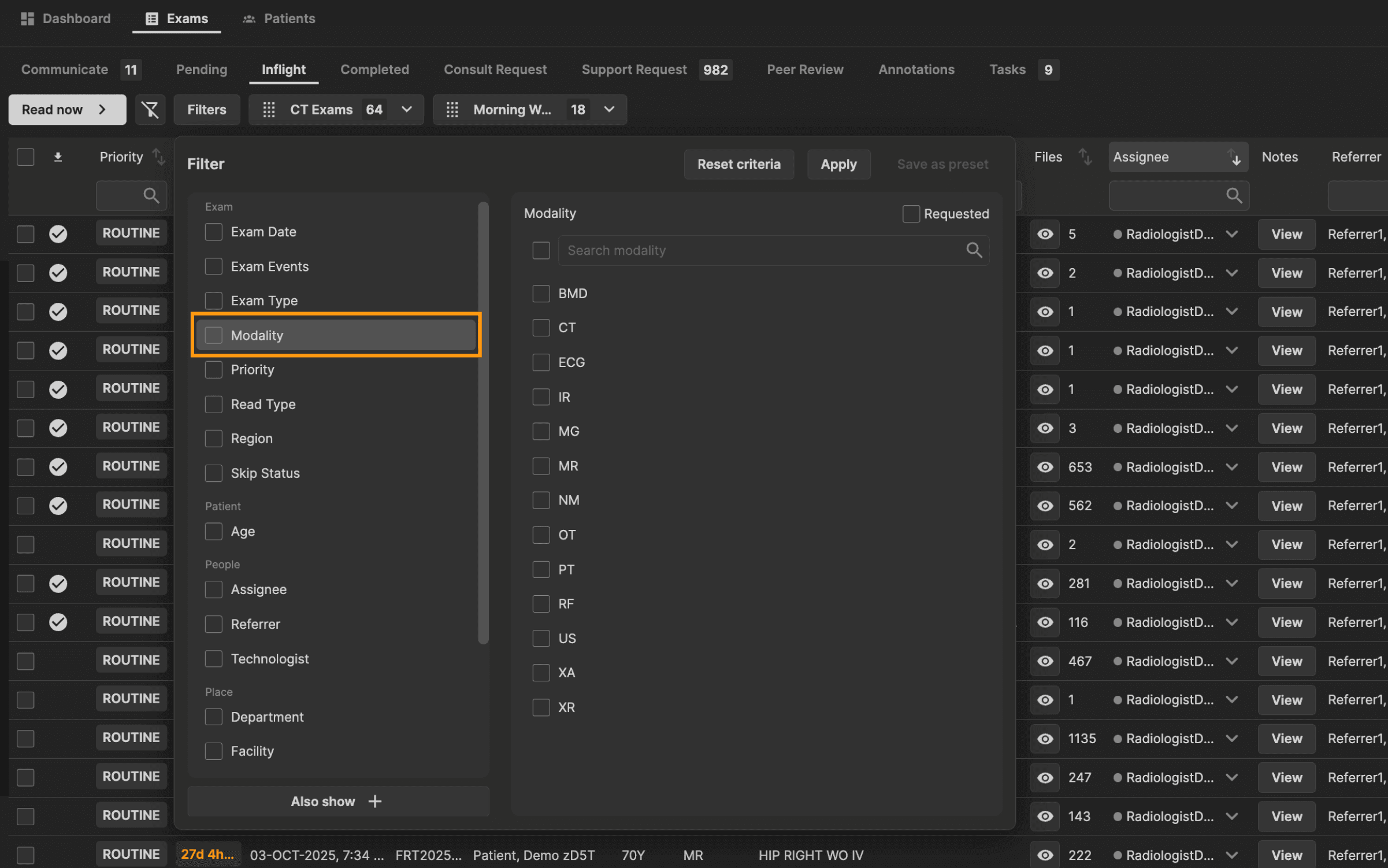
Select a main criteria item on the left panel to view available options. | |
|---|---|
 |
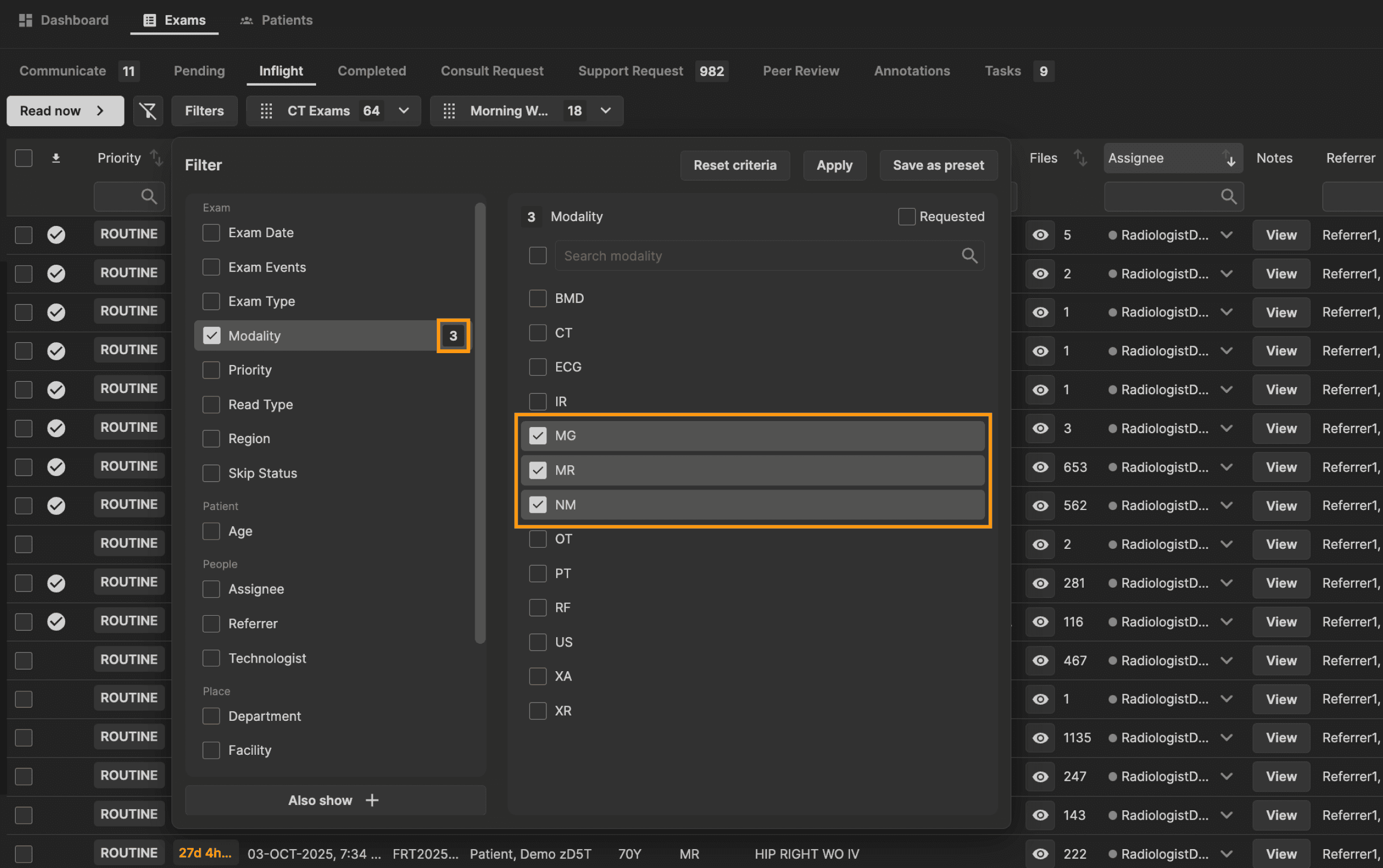
Select the necessary options. A number will appear next to the main criteria item to show the amount of options selected within that main criteria item. | |
|---|---|
 |
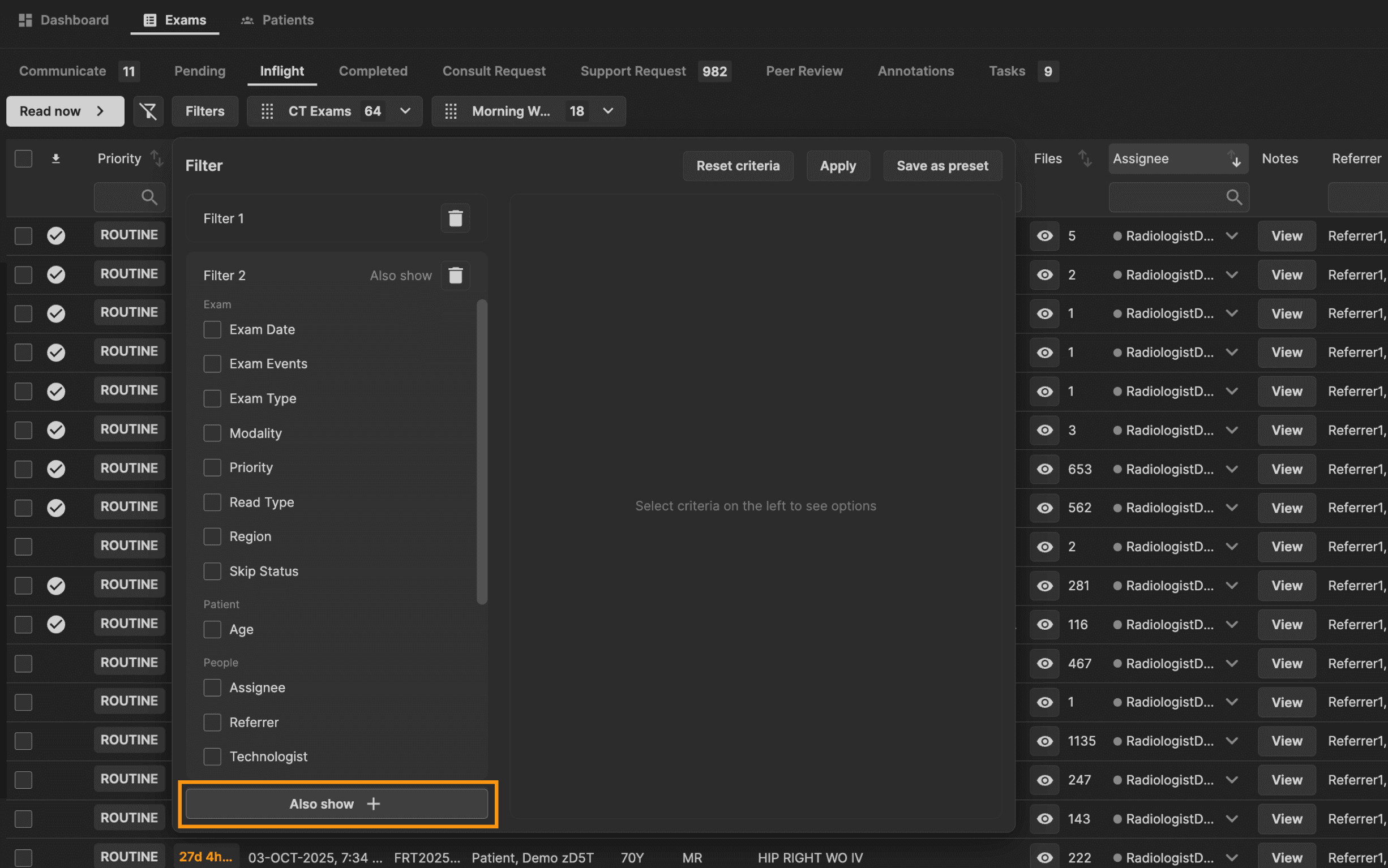
You can create different groups of criteria with the "Also show +" button at the bottom of the left panel. | |
|---|---|
 |
Click "Apply" to apply the filter and close the window. | |
|---|---|
 |
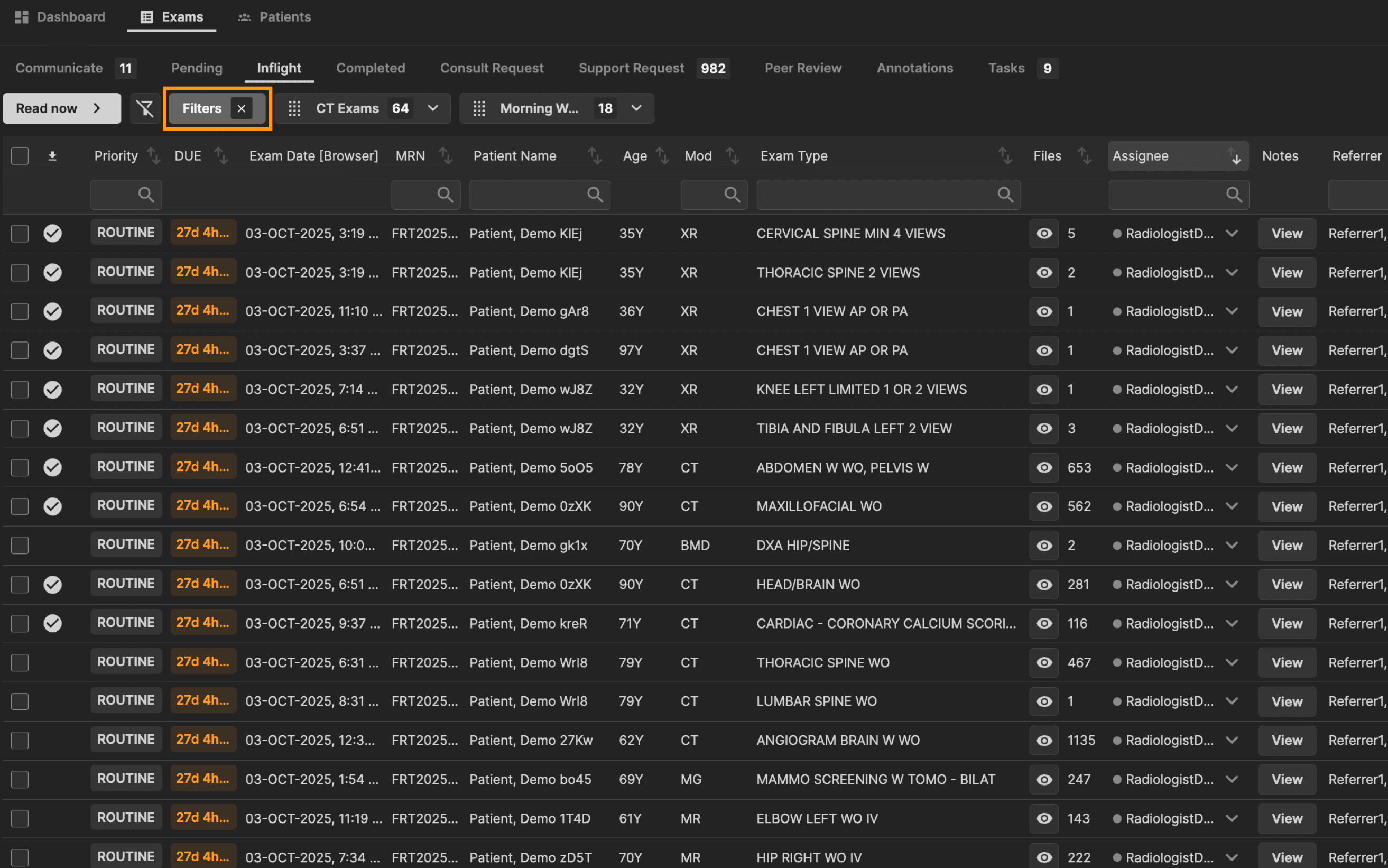
If the "Filters" button looks like this, this means a filter is applied. To edit the applied filter click on the button. To remove the applied filter click on the "X." | |
|---|---|
 |
Save a preset filter
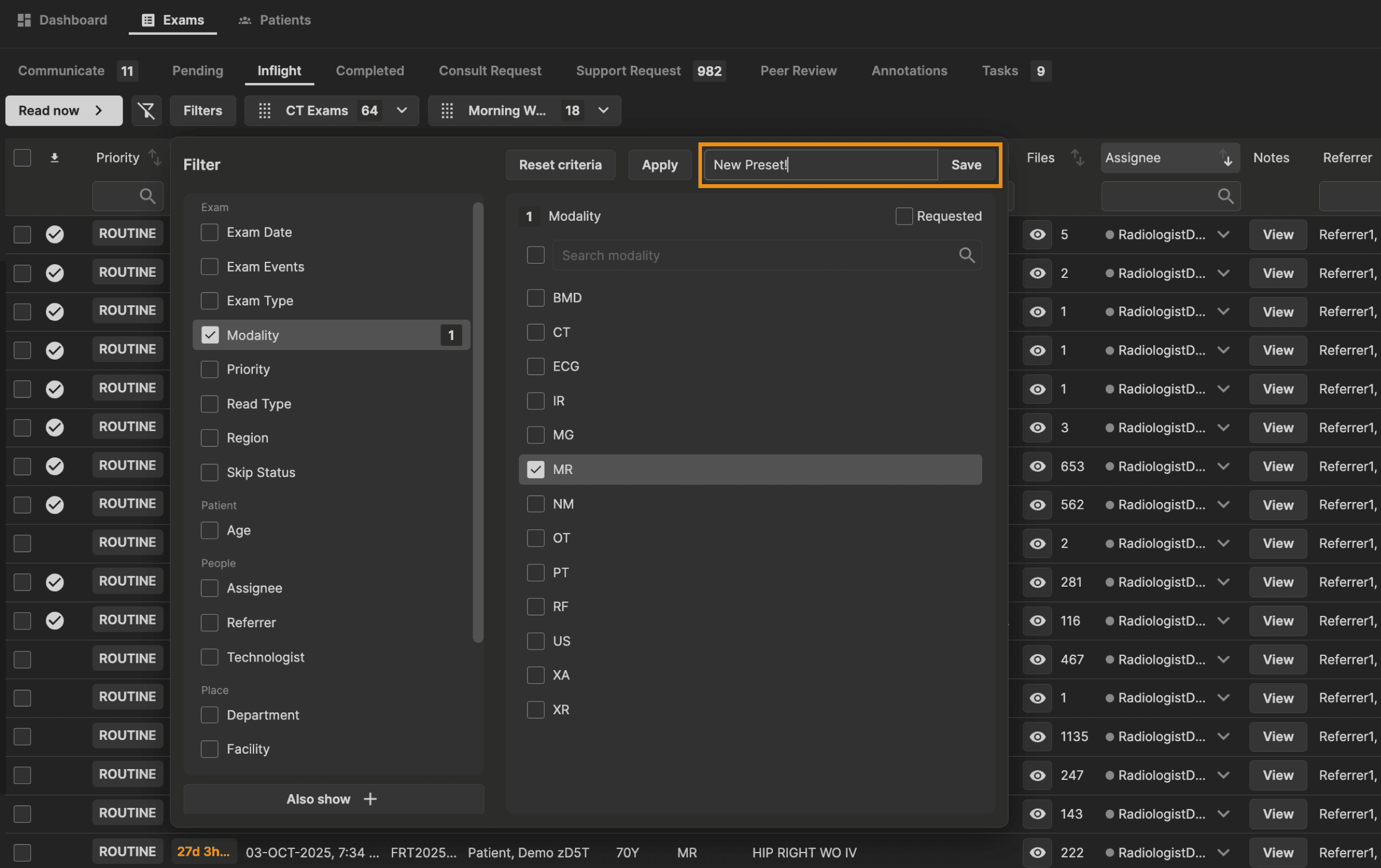
To save as a preset, reopen the filter menu by clicking "Filters" and click "Save as preset." | |
|---|---|
|
|

A name field will appear. Enter the preset name and click "Save." | |
|---|---|
 |
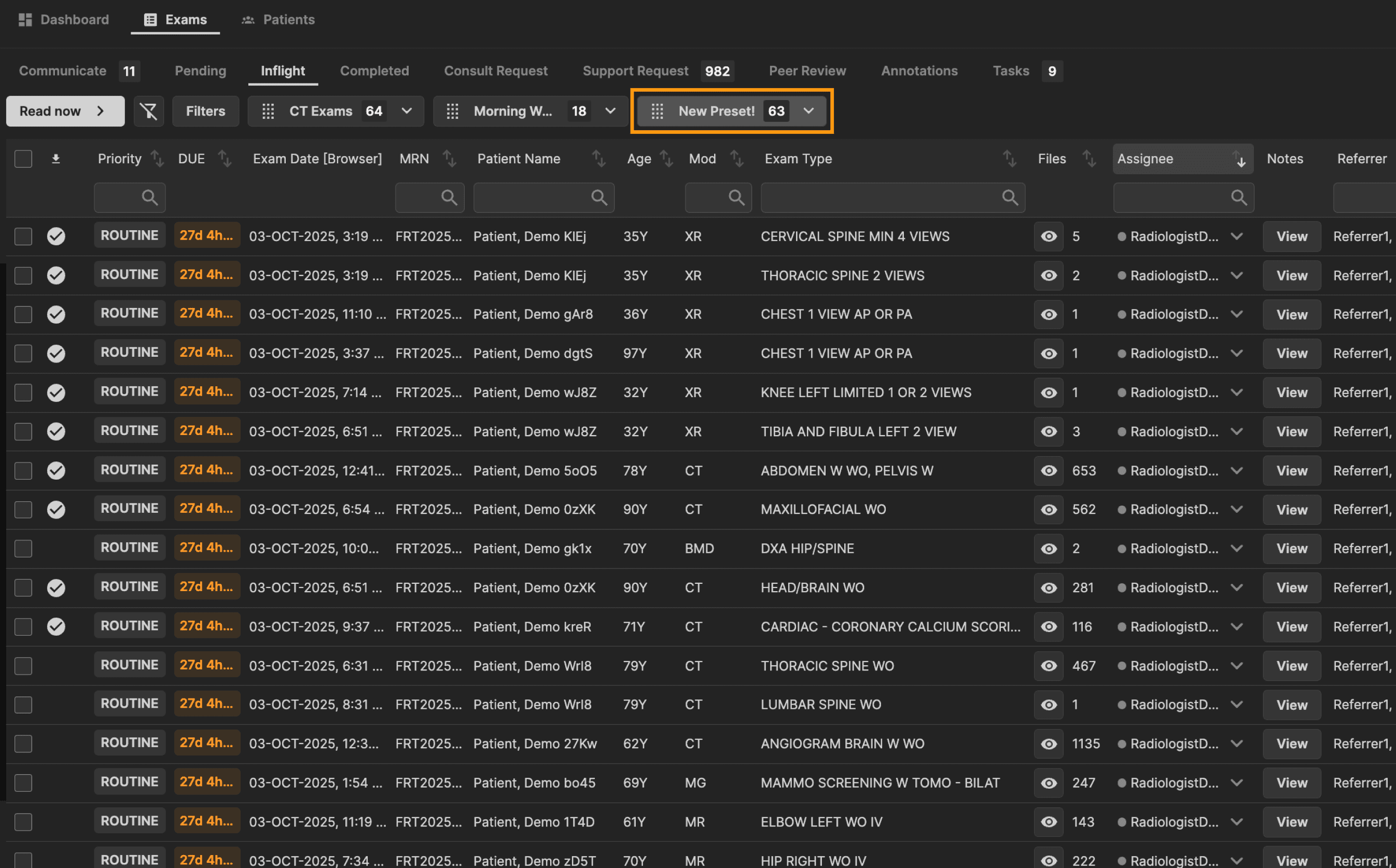
The preset is now visible above the exams table. The number in the preset button shows the amount of exams that apply to that preset filter criteria. Re-order your presets above the table as you wish. | |
|---|---|
 |
Apply/Clear preset filter
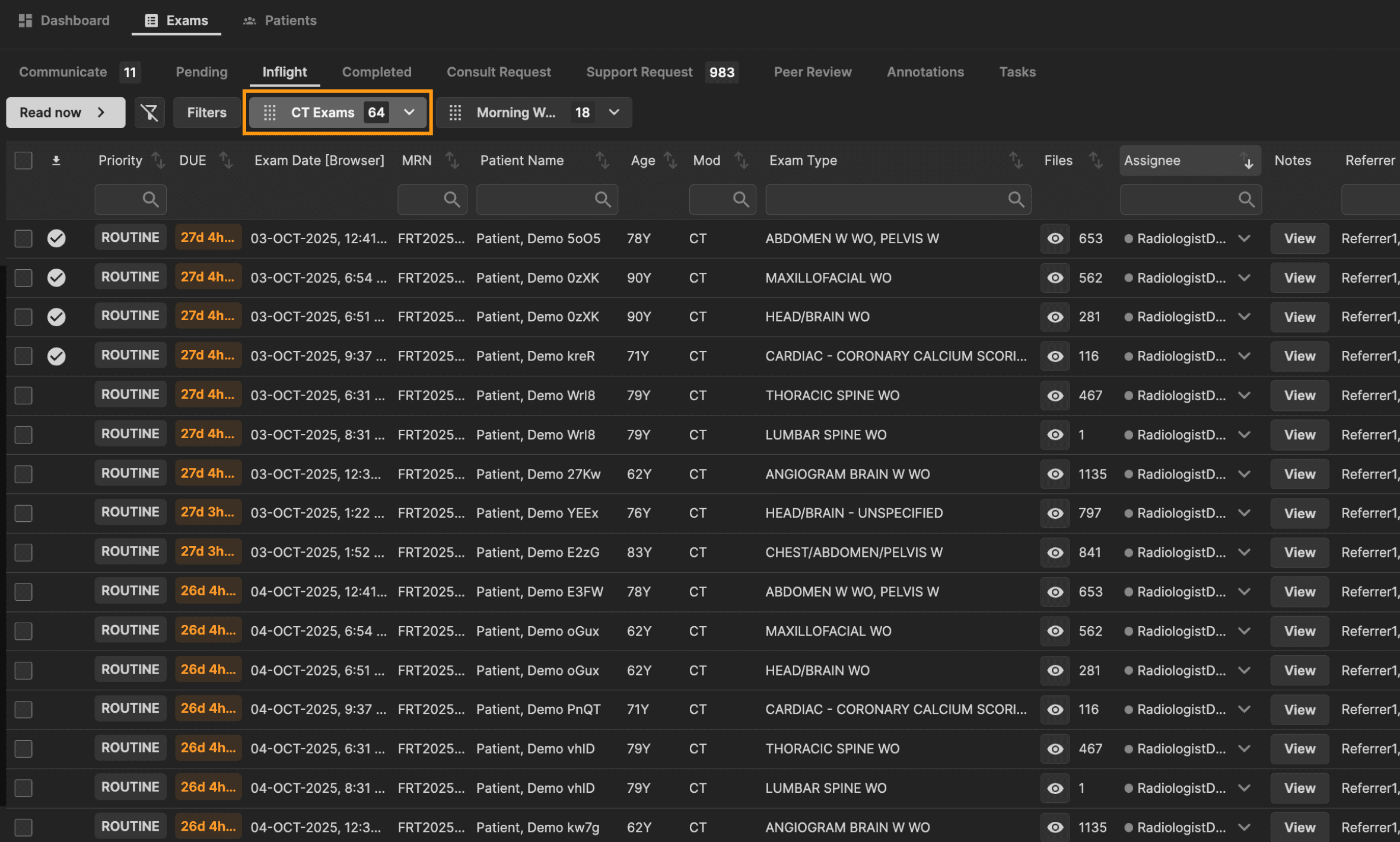
| Click on a preset to apply it to your exam list. In this example, the "CT Exams" preset filter is applied. | |
|---|---|
 |
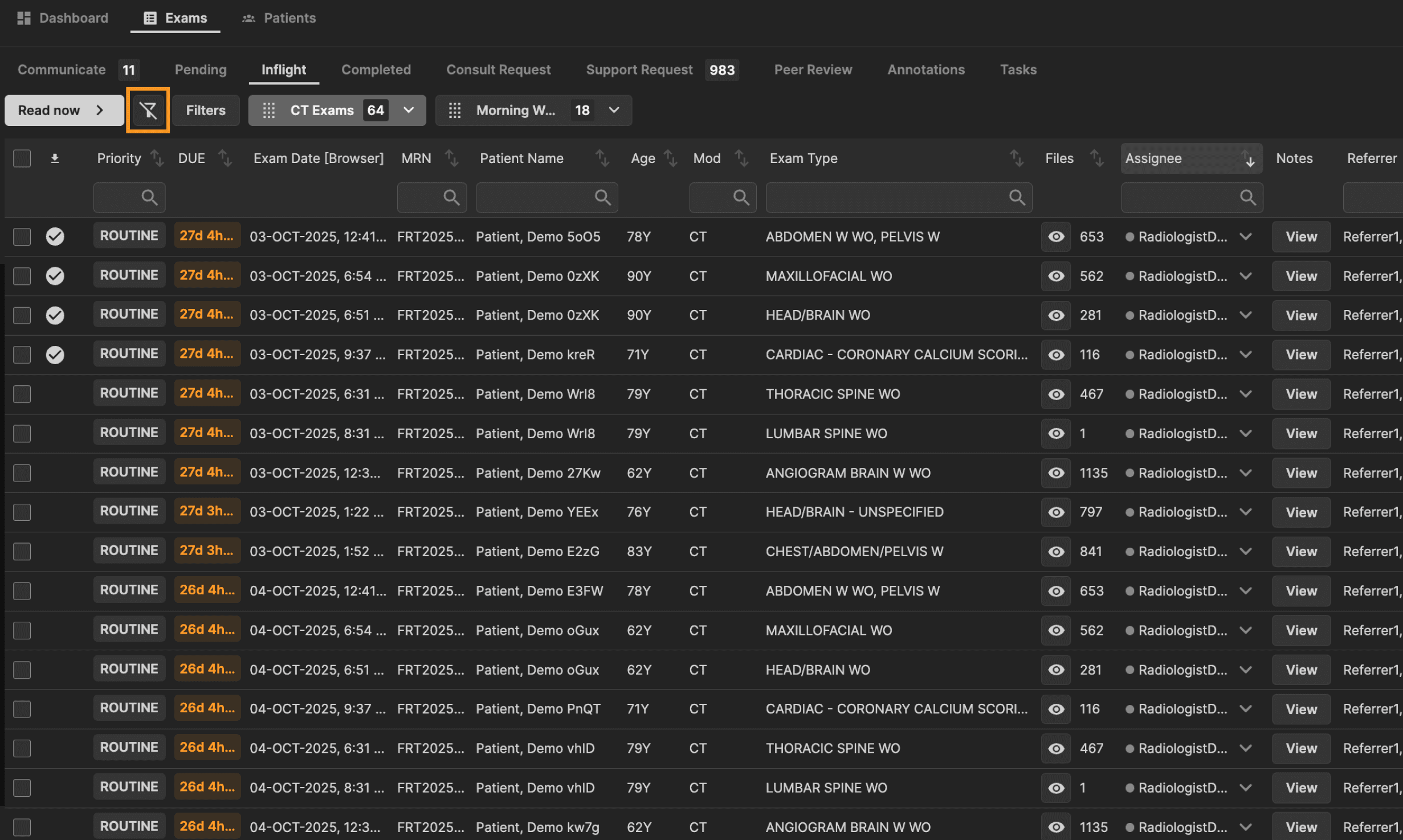
| Once applied, you may clear the preset filter by clicking the clear filter button as shown here. | |
|---|---|
 |
Edit/Delete preset filter
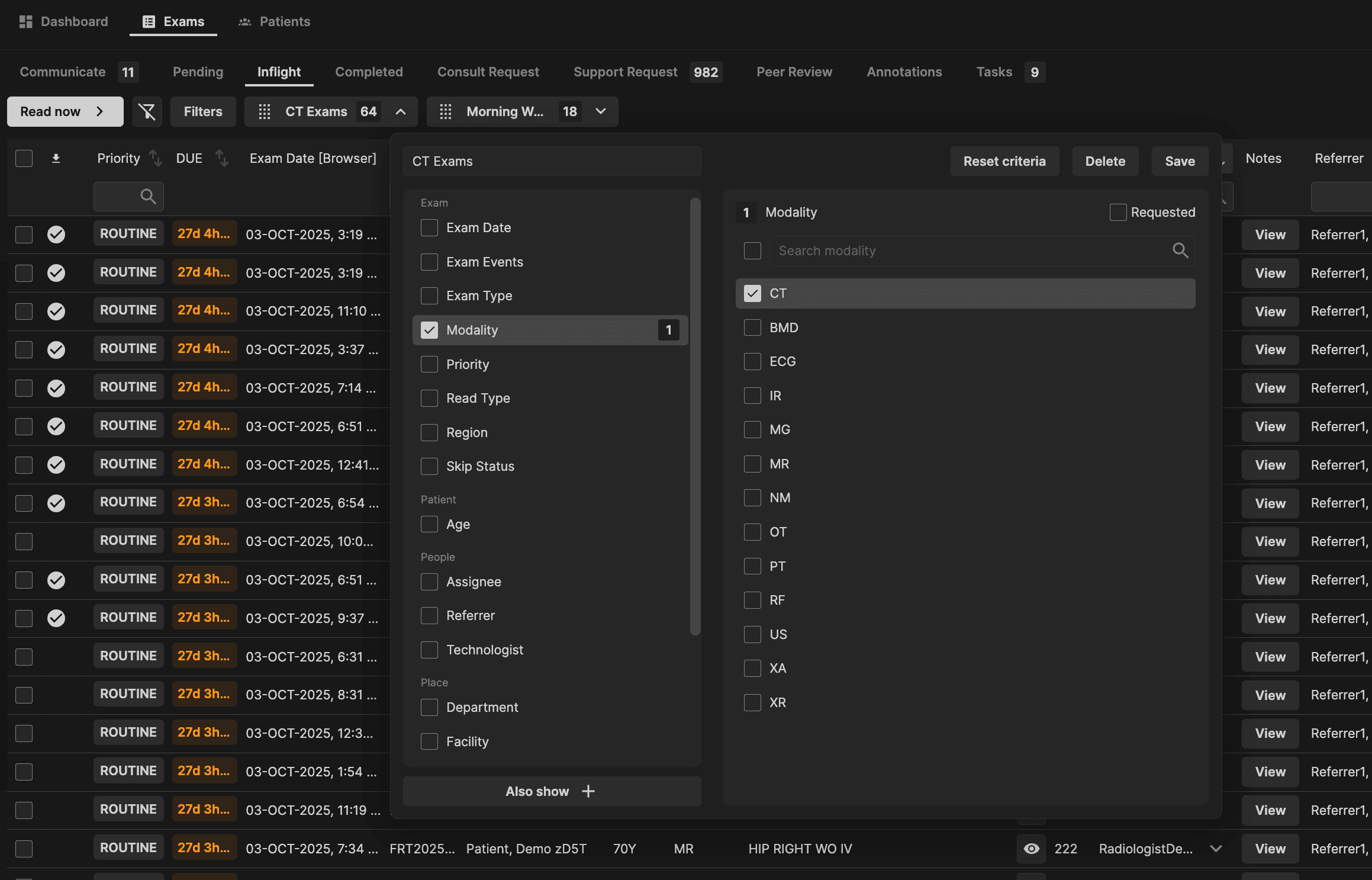
Edit a preset by clicking the drop down icon within the preset (in this example preset named: CT Exams). After editing, click "Save" to update the preset. | |
|---|---|
 |
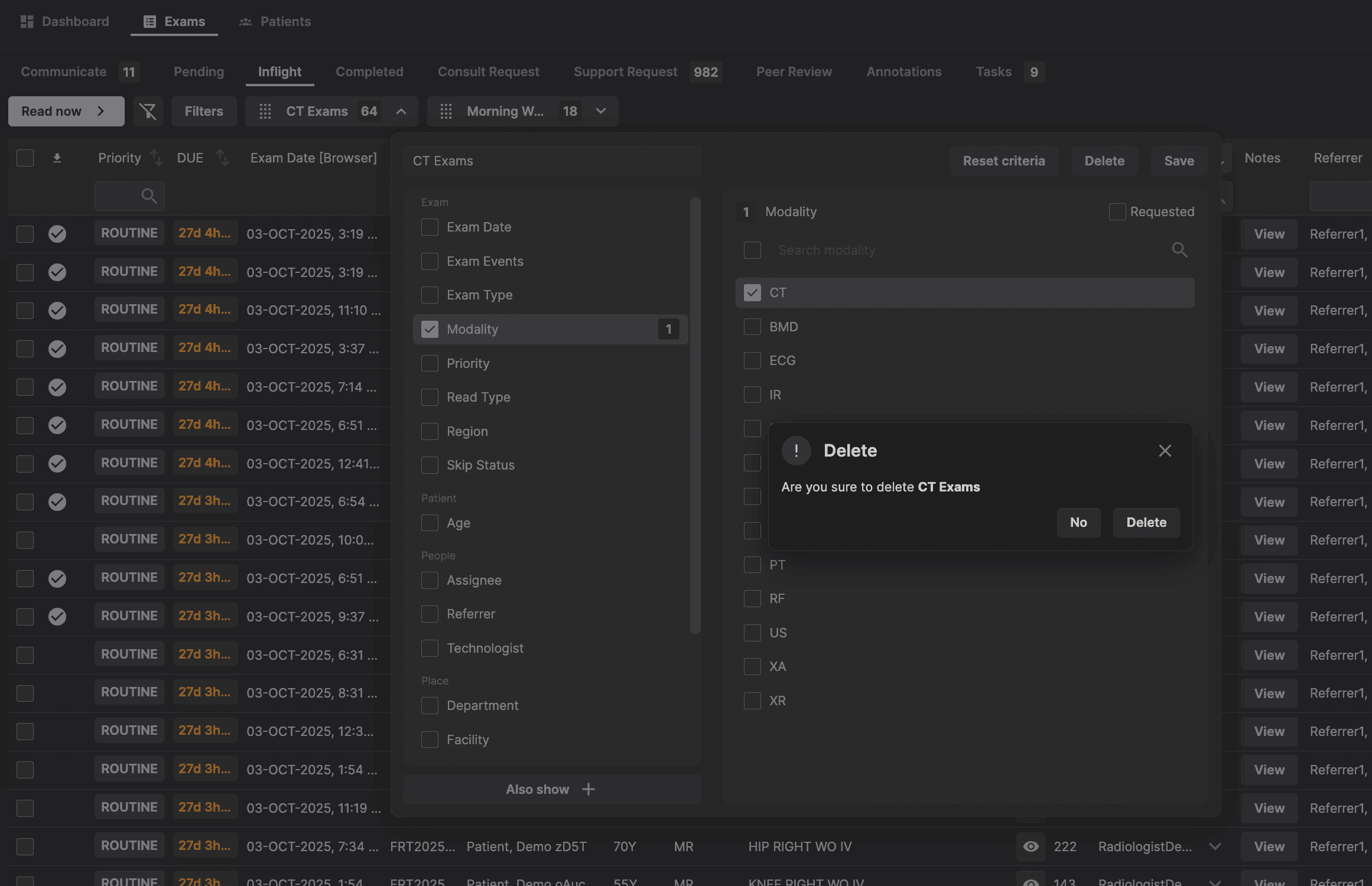
Delete the preset filter by clicking on "Delete". | |
|---|---|
 |