What this feature does |
|---|
|
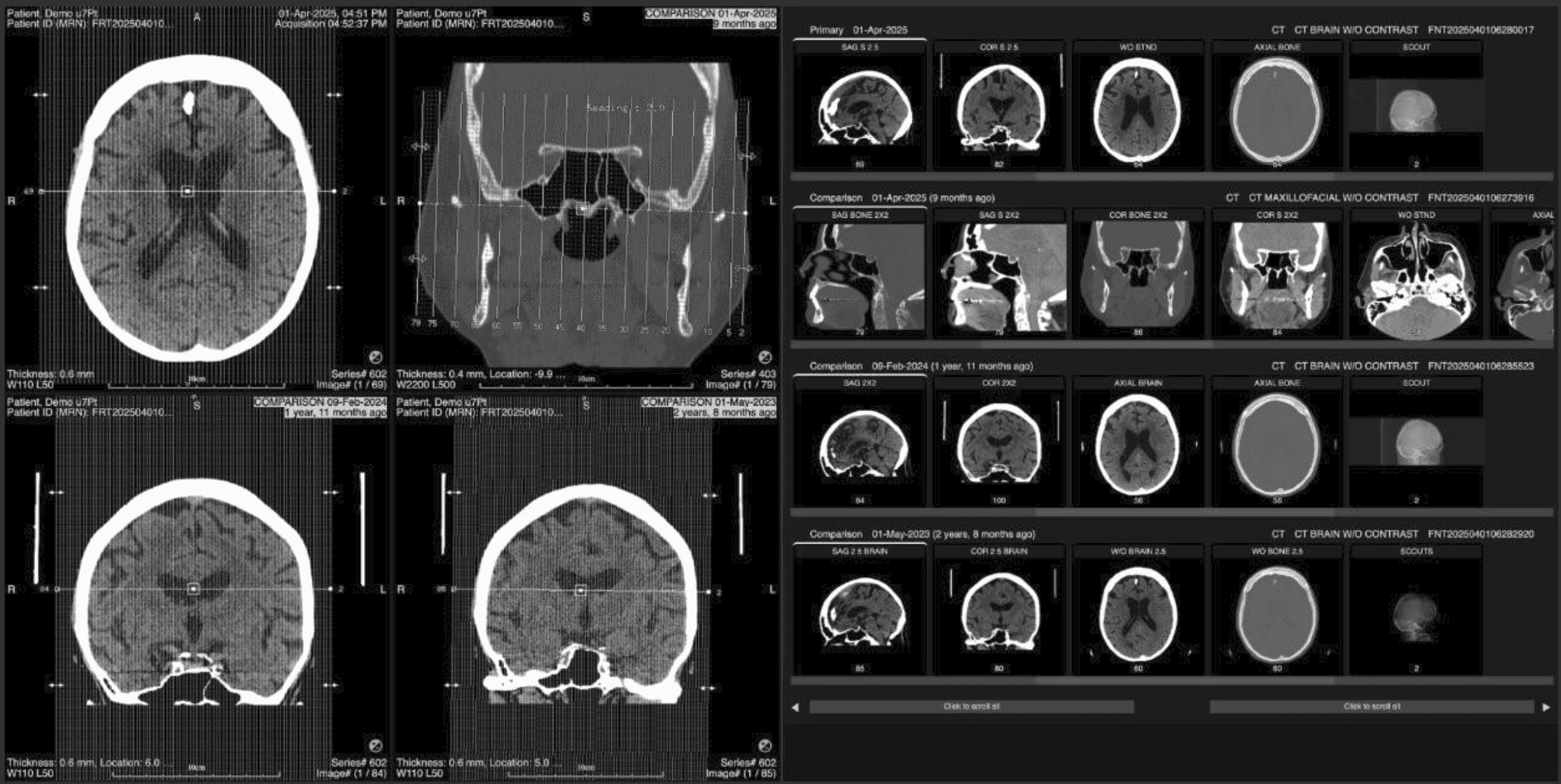
Compare Mode is a dedicated viewing layout for side‑by‑side comparison. This mode lets you display the current exam together with up to three prior exams at the same time. It is designed to make routine comparison faster and more consistent, with less manual setup.
|
How to use it (step‑by‑step) |
|---|
|
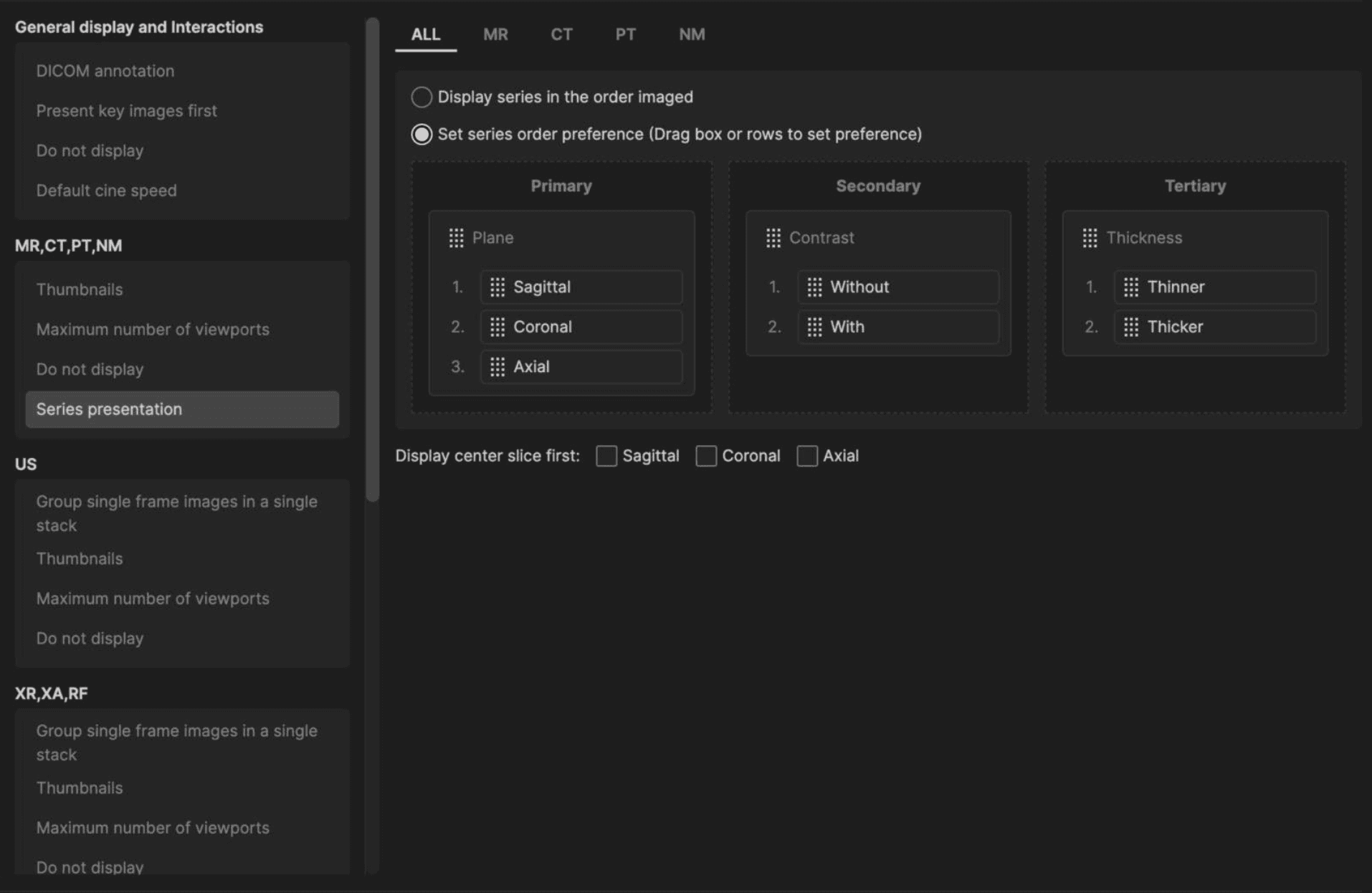
1. Set-up your Series Presentation hanging protocol. Define the sort priority using drag-and-drop controls across primary, secondary, and tertiary levels. Organize series based on key attributes including:
|
 |
|
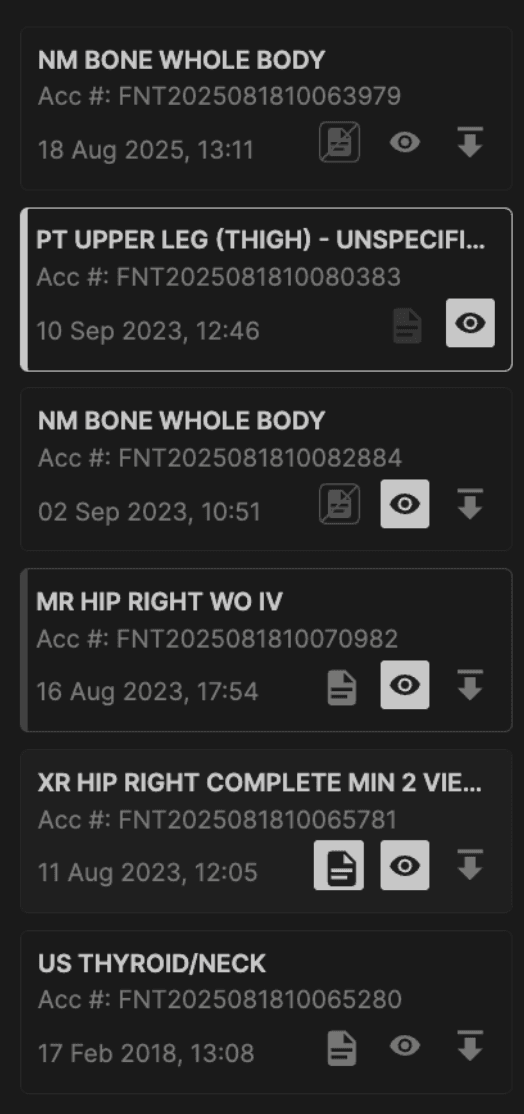
2. Turn Compare Mode on
If there is no prior exam, Compare Mode will not be available. |
 |
|
3. Understand the thumbnail rows and scrolling
|
|
4. Load series into the viewports You can load images into the left viewports in two main ways:
Which series are considered “in that column” depends on where each thumbnail row’s scrollbar is positioned, plus any global scrolling you have done. |
|
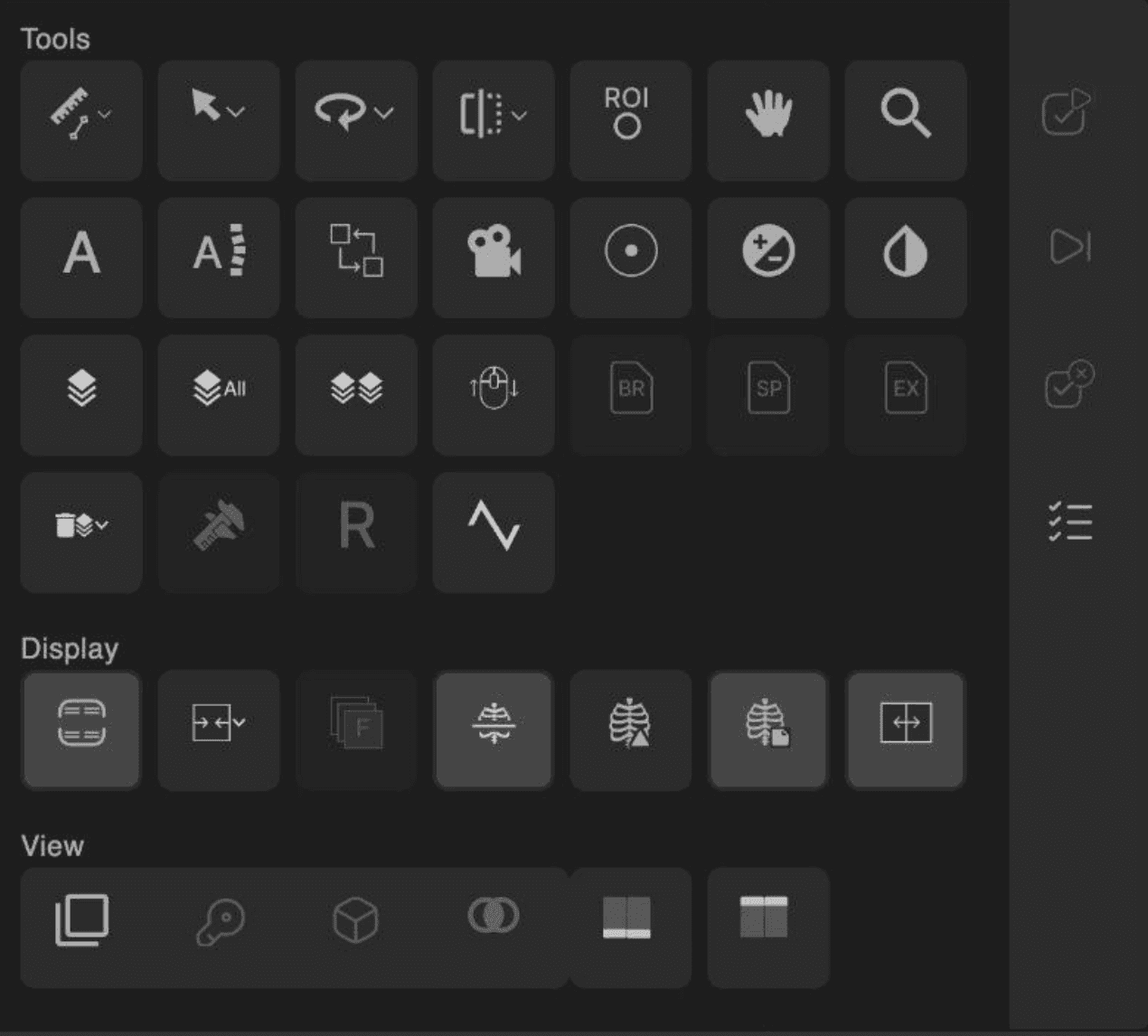
5. Use tools while in Compare Mode
|
|
6. Hide comparison exams If one of the prior exams is not useful:
|
Limits and known constraints |
|---|
|
 |
|
|